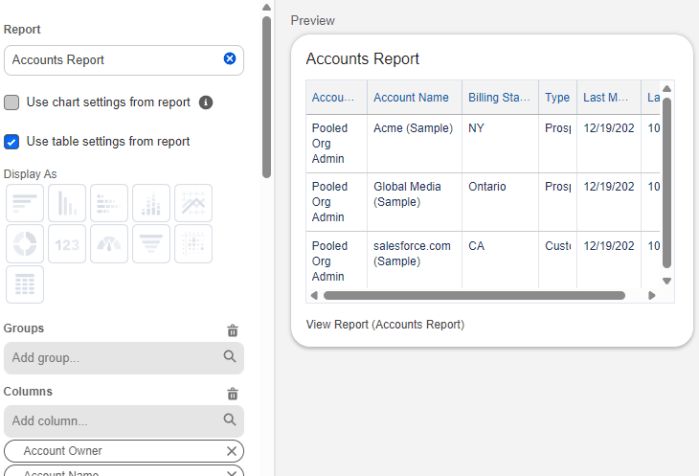
Spring ’26 Release Report and Dashboard Features 📊
With the upcoming Spring ’26 release we have a few new features for Reports and Dashboards. Let’s take a look at what we are getting.

Salesforce reports, dashboards, and analytics
Topics related to Salesforce dashboards
With the upcoming Spring ’26 release we have a few new features for Reports and Dashboards. Let’s take a look at what we are getting.

Salesforce CRM Analytics isn’t just for dashboards and lenses tucked away in Salesforce anymore. With the CRM Analytics for Slack app, users can bring powerful analytics insights right into their Slack workspace—where collaboration happens in real time.
We will explore how users can view, share, and act on standard Salesforce Reports and Dashboards(no paid CRM Analytics Licenses required) without leaving Slack. Whether you’re a sales manager monitoring pipeline health or a service leader tracking case resolution times, CRM Analytics in Slack makes it easier than ever to stay informed and responsive.

We all know that Reports and Dashboards are critical to businesses. However, far too often we end up with hundreds of Reports, most of which go unused, piling up in folders that no one even remembers where to access them. Wouldn’t it be better if we could take our most important analytics and put them in the forefront ? Good news, we can, by embedding them in the UI. I’ll demo several ways to bring these charts to the surface and place them where they are truly useful and actionable.

Overcome polymorphic field limitations as cross object dashboard filters by owner. Learn how you can filter Opps and Leads by owner on a dashboard.
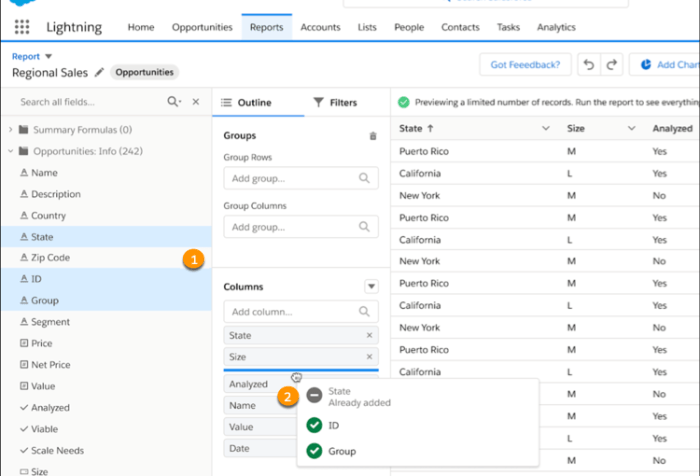
As with every Salesforce release there are new features rolled out across that platform. With Spring ’21 there are a some specific enhancements to Reports and Dashboards. Let’s take a look at what we have available to us.
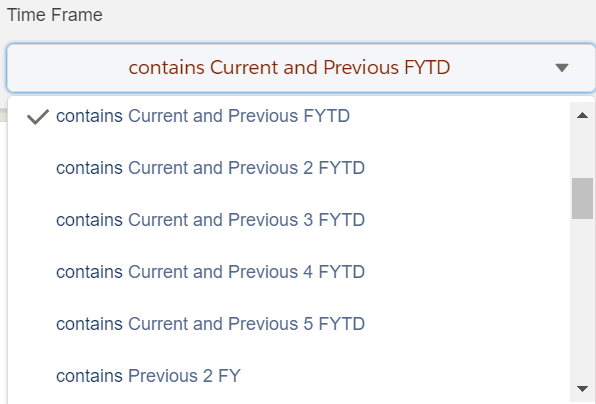
You can build a single dashboard along with the necessary source reports and allow the running user to choose their time frame with the ease and simplicity of selecting an option from a drop down menu. Up to 50 time frame options can be predefined using this method and you have complete control over the display values for those options. Easily compare the current year-to-date (or fiscal year-to-date) to the same time frame during the previous year. You can even show trends over multiple years.

Filter Knowledge Reports by Category This feature has been long sought for Knowledge users. It allows you to filter reports based on Category. The UI positions the filter in a … Continue Reading Summer ’20 Release Features: Reports and Dashboards
Reports and dashboards are an integral part of every Salesforce org and are key components to uncover business insights as well as to drive actionable decisions. The consumption of the data is an important piece of their usage. To make these analyses even more useful we can add layers of sharing and collaboration. This allows us to capture different perspectives, challenge the validity or derivation of the data and make it more accessible. Next we will look at several ways to do this.
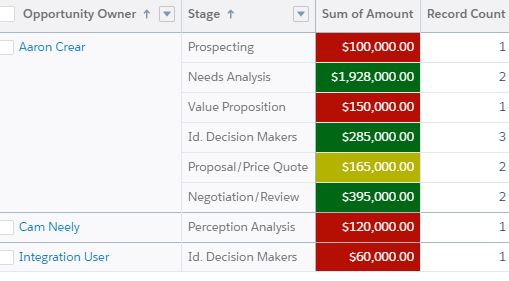
Reports are a mechanism for gathering and correlating data. However, people are visual learners. Adding a chart to a report or creating a dashboard allows people to easily understand the business insights that the report is providing. To take this visualization to the next level you can utilize color to help further communicate the report results and make them easier to consume. During this presentation you will learn how to set default picklist value chart colors, use conditional formatting to color code report table cells, create visual image formulas, customize dashboard themes and palettes and get creative with Analytics dashboard color schemes.
 ReportForce